Assign Rooms to Staff
Room assignment helps managers distribute rooms across housekeeping staff and monitor progress during a shift.
Quick Reference
| Item | What It Means | What To Do |
|---|---|---|
| Section | A group of rooms used for assignment. | Confirm sections are correct before assigning. |
| Staff workload | Number of rooms assigned to each staff member. | Balance workload across the team. |
| Assigned room | Room owned by a staff member for the shift. | Review status changes through the room queue. |
| Assignment configuration | Rules and service types that shape assignment behavior. | Review configuration before changing the daily workflow. |
| Default service type | The enabled service type HOME uses when an applicable room assignment has no service type. | Choose an enabled default or No default in Settings > Assignment. |
| Missing service type | A blank service type marked Missing or No ST when the optional indicator is enabled. | Filter for missing values and update the room before continuing. |
| Reservation notes | Non-empty notes from OPERA reservations associated with the room. | Enable Reservation Notes, then use Reservation Notes or See notes to review them. |
| Staff room list | The room attendant view where staff search rooms and open room cards. | Ask staff to refresh after assignment changes. |
| Staff picker | The Add Staff modal shows available staff on one side and selected staff on the other. | Use Add All Available to fill the shift faster, then review the selected list before auto-assigning. |
| Assignment summary | Staff-facing summary of completed rooms, credits, service reject, and do-not-disturb counts. | Use it during shift review. |
| Daily room summary | Manager-facing counts for assigned, unassigned dirty, in-progress, and completed rooms for the selected date. | Use the cards to spot work that needs attention before changing assignments. |
| OPERA guest details | Current guest names shown in an assignment panel for an OPERA room when PMS data is available. | Review the names for room context; treat HOME as read-only for this information. |
| Self-reassign | Staff can claim eligible rooms from another assignment when enabled. | Confirm eligibility before staff take a room. |
| Turndown creation | Managers can create turndown assignments for eligible occupied rooms when the property uses turndown service. | Confirm turndown assignment is enabled and the current date matches the work date. |
| Stayover override | Some occupied stayover rooms can inherit a Full service type when the previous day used a no-clean status. | Check the room history before changing the assignment manually. |
| Section selection | Selects eligible rooms in the current results by section and room status. | Use it when a section needs the same bulk action. |
| Auto Assign scope | Chooses whether Auto Assign handles available jobs only or redistributes unstarted rooms. | Confirm the scope before continuing. |
| Auto Assign priority | Chooses whether Auto Assign favors workload balance or follows section preferences. | Select the priority that matches the shift plan. |
| Auto Assign credit limits | Keeps staff within maximum credit or allows eligible rooms to be assigned with proportional excess credit. | Choose the option that matches the shift plan. |
| Auto Assign room statuses | Chooses which enabled Dirty, Clean, and Inspected rooms are included in this run. | Select at least one status and review it before confirming. |
| Active advanced filters | Shows how many advanced filters are applied to the current results. | Check the count before reviewing or changing assignments. |
| Keyboard controls | Work-date, room-type, section, and calendar controls support keyboard focus and selection. | Use Tab, Enter or Space, and Escape to move, open, and close controls. |
| Remembered Auto Assign choices | Restores the manager's last scope, priority, credit-limit, and room-status choices for the property in the current browser. | Review the choices before confirming the next run. |
| Auto Assign undo | Restores eligible rooms to their assignments before the latest Auto Assign run. | Undo before manual assignment changes or started work makes the run unavailable. |
| Same-day credit edits | Allows managers to update job credits for today's assignments after completion. | Update the current day's credit when the completed work record needs correction. |
| Credit history | Shows a staff member's completed cleaning credits by day for a selected month and year. | Open the credit history from the assignment summary while HOME is online. |
| Soraso room import | Loads room occupancy and housekeeping statuses from a Soraso spreadsheet. | Select Soraso in configuration before uploading the report. |
Before You Start
- Staff accounts must be active.
- Rooms and sections must be configured.
- The manager should know the daily staffing plan and confirm at least one Dirty, Clean, or Inspected room-status row is enabled in Settings > Assignment before using Auto Assign.
- If the property uses service types, enable Service Type configuration and the service types that should be available before choosing a default.
- For Opera or Comanche properties, enable Service Type configuration before turning on the Missing Service Type Icon.
- For properties using OPERA OHIP, confirm reservation data is available in HOME before enabling Reservation Notes.
- If the property uses turndown service, confirm turndown assignment is enabled and the configured creation time has passed.
- For Soraso imports, an Employee administrator must select Soraso as the room-assignment template and save the configuration.
Assign Rooms
- Go to Room Assignments.
- Select the lower-left Multiple Select checkmark control.
- Under Available Job, select the checkbox for the room or rooms to assign.
- Choose Assign Rooms from the action bar.
- Select the room attendant.
- Confirm with Assign.
- Ask staff to refresh their task or room list if needed.
Review the Daily Room Summary
Room Assignments shows four summary cards for the selected work date:
- Assigned rooms counts rooms with an assignee.
- Unassigned dirty rooms counts dirty rooms that do not have an assignee.
- Cleaning in progress counts rooms whose work has started.
- Rooms completed counts rooms marked complete.
Use these cards as a shift overview. They count physical rooms, so a turndown child assignment does not add a second room to the totals. The cards refresh when the room-assignment data changes.
Review OPERA Guest Details
For properties using an OPERA PMS connection, open an assignment from Room Assignments. The Guest Details panel appears when current PMS occupancy data is available. It shows guest names and identifies the main guest or an additional guest.
The panel is read-only. If HOME cannot find the current occupancy or the PMS data is unavailable, it shows an unavailable message instead of guest names. Use the PMS as the source of truth when guest details need correction.
Filter and Search Rooms
Use the room-assignment filters to narrow the current results before reviewing or changing assignments.
- Open Room Assignments.
- Use the room-type selector or room-number search when you need a quick match.
- Click Filter and choose the advanced filters you need.
- Click Apply to update the Available Jobs and Staff Assignee results.
- Check the number shown on Filter to confirm how many advanced filters are active.
- Click Clear Filter when you need to return to the unfiltered results.
For keyboard access, press Tab to reach the work-date, room-type, or section controls. Press Enter or Space to open a selector, and Escape to close it. Calendar dates and month controls can also be reached as buttons.
Enable and Review OPERA Reservation Notes
For properties with an enabled OPERA OHIP integration, enable Reservation Notes to show non-empty notes from OPERA reservations in manager and staff room-assignment views.
- Go to Settings > Assignment.
- Enable Reservation Notes.
- Click Save.
- Open Room Assignments after the next reservation update is available.
- On a room with notes, click Reservation Notes on the room card. In the manager assignment panel, click See notes.
- Review the note title when one is provided and the note text. Close the note list when finished.
Reservation notes are read-only in HOME. When more than one OPERA reservation is associated with a room, HOME lists each non-empty reservation note. Notes are removed when the reservation is no longer associated with the room.
Enable the Missing Service Type Icon
Turn on the optional warning when managers need blank Service Type values to stand out during room assignment.
- Go to Settings > Assignment.
- Under PMS Selection, choose
OperaorComanche. - Open the Service Type tab, enable Service Type configuration, and click Save if it is not already enabled.
- Open the Assignment tab.
- Enable Missing Service Type Icon.
- Click Save.
The setting is available only for the Opera or Comanche template when Service Type configuration is enabled. With the setting on, assigned rooms with a blank Service Type show a No ST badge on room cards, a Missing label in the room table, and a matching legend entry.
Find Rooms Without a Service Type
When Service Type configuration is enabled, the Service Type filter includes (blank) / Missing. If the Missing Service Type Icon is enabled, HOME also marks blank values in the room table and on room cards.
- Open Room Assignments.
- Click Filter.
- Under Service Type, choose (blank) / Missing.
- Click Apply.
- Open each flagged room, choose a valid Service Type, and save the assignment.
Clear the filter when you want to return to all service types. The missing-value option is available with the service type filter, including when configured service types are enabled.
Use advanced room filters
The Filter panel groups additional choices under Room condition, Guest state, Service type, and Workflow & exceptions. Available choices depend on the property's enabled integrations and settings.
- Open Room Assignments.
- Click Filter.
- Select one or more values in a group. Values in Room condition, Guest state, and Service type can be combined; workflow choices apply as a single choice where shown.
- Review the selected values, then click Apply filters.
- Review the results before assigning or updating rooms. Click Reset when you need to remove the selections in the panel.
Common choices include occupied or vacant rooms, departures today, extended stays, rooms in progress, DND or service rejected rooms, completed cleaning, notes, traces, and turndown requirements. A choice appears only when the related property setup or room data supports it.
Select Rooms by Section
Use the section shortcut when several rooms in one section share a room status.
- Open Room Assignments and load the current work date.
- Select rooms for a bulk action so the multiple-selection bar appears.
- Click Select by section.
- Choose a Section.
- Select or clear one or more Room statuses.
- Review the selected and eligible room counts. The selection updates immediately for eligible rooms in the current results.
- Close the panel and continue with the required bulk action.
The shortcut works only when HOME is online and the current date is selected. Rooms without an assignment ID, rooms that cannot be matched to a section, and rooms whose work has started or completed are not added to the selection.
Use Smart Auto-Assignment
Use Auto Assign to distribute the remaining rooms across the staff selected for the shift.
- Go to Room Assignments.
- Review the unassigned rooms and work already assigned.
- Click Add Staff and select the staff who should receive rooms. Use Add All Available when the full available pool should join the shift.
- Click Auto Assign.
- In the confirmation prompt, choose Assign available jobs only to leave existing room assignments unchanged, or choose Redistribute unstarted rooms to return eligible unstarted rooms assigned to the selected staff to the available pool before balancing it.
- Under the priority prompt, choose Balance workload (Recommended) to balance room credits while considering section preferences, or choose Follow section preferences to assign rooms only to staff explicitly preferred for each room's section.
- Under the credit-limit prompt, choose Respect credit limits to stop assigning when staff reach their maximum, or choose Assign all eligible rooms to allow staff with a positive limit to exceed it when needed to cover eligible rooms. Then under Room statuses, select one or more of Dirty, Clean, and Inspected. HOME shows only statuses enabled for the property.
- Review the notice that rooms where work has started are excluded, then click OK to proceed.
- Wait for the assignment to finish, then review each staff member's rooms and total credits.
- Adjust individual rooms manually if the daily operation requires a change.
If a room status is disabled after you open the prompt, HOME asks you to review the available selection instead of silently choosing another status.
HOME remembers the last scope, priority, credit-limit, and room-status choices for your property and account in the current browser. Review the selections each time before confirming Auto Assign.
Smart Room Assignment balances job credits instead of only counting rooms. When service types use different credits, a light clean can carry fewer credits than more involved work, giving managers a more representative view of each staff member's workload.
The assignment also considers work that is already assigned, staff preferences, and compact sections when building a practical shift plan. In Follow section preferences mode, a room without a matching preferred staff member remains unassigned. With Respect credit limits, staff stop receiving rooms at their configured maximum and some rooms may remain unassigned. Eligible zero-credit rooms can still be assigned when an attendant is at or above a positive credit limit because they do not consume additional capacity. With Assign all eligible rooms, HOME can exceed a positive credit limit to cover eligible rooms and balances the excess in proportion to each selected staff member's configured maximum. Room credits are indivisible, and existing assignments or other eligibility rules can produce the closest proportional result.
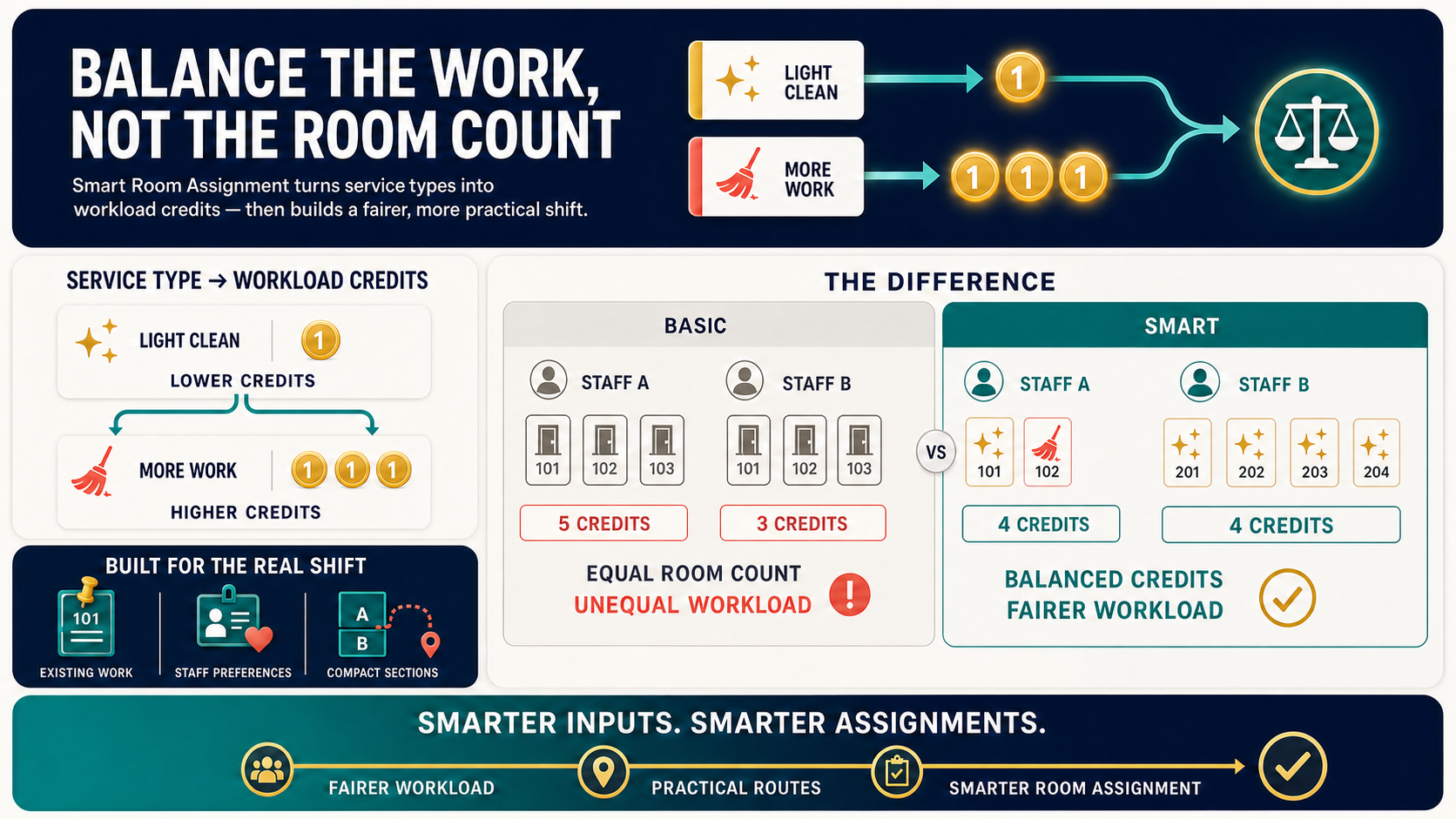
Smart Room Assignment uses service-based credits to balance real workload, not just room quantity.
Undo the Last Auto Assignment
Undo the latest Auto Assign run when the distribution needs to be restored before the shift continues.
- Open Room Assignments for today's date while HOME is online.
- Stay in the staff-name view and confirm the Undo last auto-assignment action is available.
- Click Undo last auto-assignment and review the number of rooms that will be restored.
- Check the notice for rooms where work has already started; those rooms stay unchanged.
- Confirm the undo, then review the room list and each staff member's assignments.
Undo is available for the latest eligible Auto Assign run. A manual assignment change, a historical date, offline HOME, or a section view can make the action unavailable. If a room's work has started, HOME leaves that room unchanged.
Import Soraso Room Statuses
Use a Soraso room-status spreadsheet to update room occupancy and housekeeping status in the current room assignment date.
Before the first import, an Employee administrator must configure the PMS template:
- Go to Settings > Assignment.
- Select Soraso from PMS Selection.
- Click Save.
To import a report:
- Open Room Assignments for today.
- Click Upload.
- Use the Soraso spreadsheet's first worksheet.
- Confirm the report contains room number, room type, and a supported status in each room block.
- Review the updated room assignment list after the upload completes.
Soraso reports can provide these statuses: OC, OD, VC, VD, OO, OI, and OS. HOME applies them as follows:
| Soraso status | HOME result |
|---|---|
OC | Occupied and Clean |
OD | Occupied and Dirty |
VC | Vacant and Clean |
VD | Vacant and Dirty |
OO | Vacant and Out Of Order |
OI | Vacant and Out of Inventory |
OS | Vacant and Out Of Service |
The upload is available when the property is online and the selected assignment date is today. If the report is rejected, check that the first worksheet contains room blocks with a supported status, then try again.
Enable Turndown Assignment Creation
- Go to Settings > Assignment.
- Enable Enable Turndown Assignment Creation.
- Set the Turndown Creation Time.
- Save the room assignment configuration.
The Create Turndown action appears only when the property is online, the selected date is today, and turndown assignment creation is enabled. The configured creation time controls when managers are expected to create the batch.
Adjust Assignments During a Shift
- Reopen the assignment page.
- Find the staff member whose workload changed.
- Move rooms to another staff member or section.
- Save the update.
- Confirm both staff members can see the updated work.
- Check the room history if a stayover room already shows a Full service type.
For an assignment on the current working day, managers can update its job credit even after the room is marked complete. Historical-day assignments remain unavailable for credit changes.
Create Turndown Assignments
Use turndown creation when the property wants to add turndown work for eligible occupied rooms in bulk.
- Open Room Assignments on the current work date.
- Confirm the property has turndown assignment enabled.
- Click Create Turndown when the button is available.
- Review the eligible occupied rooms in the modal.
- Leave the checked rooms selected, or clear any rooms you do not want to include.
- Save the turndown assignment batch.
- Refresh the roster and confirm the new turndown assignments appear.
Turndown creation only appears when the property is online, the selected date is today, and turndown assignment is enabled. Rooms that already have turndown are skipped in the selection list.
Review Assignment Configuration
Use assignment configuration before go-live or when the property changes how rooms are distributed.
- Go to Settings > Assignment.
- Review assignment behavior and service type configuration.
- Confirm service types match the housekeeping team's real shift workflow.
- Save changes before managers create the next assignment.
- Ask staff to refresh their room attendant view after configuration changes.
To use Follow section preferences, configure preferred staff for the relevant sections before running Auto Assign. When a section has several preferred staff members, HOME uses their configured priority order. If no selected staff member is preferred for a room's section, Auto Assign leaves that room unassigned.
Configure ONL Follow-Up Tasks
When the property uses ONL (Occupied No Luggage), HOME can create one shared ONL Investigation task when a room changes to ONL.
- Go to Settings > Assignment.
- Turn on Occupied No Luggage.
- Select both Front Desk and Duty Manager under Notify and share the task with.
- Turn on Automatically create ONL follow-up tasks.
- Save the room assignment configuration.
If either recipient is not selected, HOME keeps automatic ONL follow-up disabled. Open the created task from the room card with View ONL task, or use the task board to review the observation and record the investigation outcome.
Set a Default Service Type
Set a default when the property wants HOME to prefill an enabled service type for applicable room assignments that have no service type.
- Go to Settings > Assignment.
- Open the Service Type tab.
- Under Default Service Type, choose an enabled service type or No default.
- Click Save.
- Open a blank room assignment and confirm the selected service type is prefilled. Change it when the room needs a different service.
Only enabled service types appear in the default list. For extension stays, HOME does not use Check-Out as the default; choose Full, Light, or None when an extension needs a non-check-out service type.
Staff Room Attendant Flow
Staff use the room attendant flow to work from assigned rooms.
- Staff go to Staff bottom navigation > Room Assignments.
- Staff search or scroll to the assigned room.
- Staff open the room card and update room or task status as work progresses.
- Staff use notifications to follow assignment or task changes.
- If a failed update prompt appears, staff should reconnect and retry.
The assignment summary shows shift progress such as completed rooms, total rooms, completed credits, total credits, service reject, and do-not-disturb counts. Staff can use See details to review the summary during the shift.
When Reservation Notes is enabled for an OPERA property, an assigned room with non-empty reservation notes shows Reservation Notes on the room card. Open it before starting room work to review the note title and text supplied by OPERA.
Review Completed Cleaning Credits
- Complete a room in the room attendant flow.
- Check the assignment summary for today's completed credits.
- After a completion adds credits, look for the brief Room complete confirmation showing the credits earned.
- While HOME is online, click the calendar button labeled Open credit history.
- Choose a Month and Year to review daily completed cleaning credits and the month total.
- Use the hotel timezone shown at the bottom of the history when matching dates to the shift.
The credit-history button is unavailable while HOME is offline. Future months cannot be selected.
When S4 is enabled and configured for the property, completing an assignment sends a completion notification to S4 for standard room work, OOS/OOO work, and Turndown work. This does not change protected room-status behavior in HMS or OPERA.
If the streaming health badge shows a warning, ask staff to keep working only after confirming whether live updates are still flowing. Refresh the room list after connectivity is stable.
If a shift inactivity warning appears, choose Continue shift to keep working. The warning clears after staff successfully complete another action in HOME, and staff can click Start shift again after an automatic end.
When self-reassign is enabled, staff can switch from My Assignments to Others, choose an eligible room, and confirm that they want to take it. Staff should only claim rooms that are available for reassignment and should confirm with a supervisor if the room belongs to another active plan.
Troubleshooting
Reservation Notes do not appear
What you see: The Reservation Notes setting, room indicator, or note list is not available.
Do this:
- Confirm the property uses an enabled OPERA OHIP integration and the current reservation has a non-empty note.
- Go to Settings > Assignment and confirm Reservation Notes is enabled, then click Save if you changed it.
- Refresh the room-assignment or room attendant page after the latest reservation update is available.
- Confirm the note belongs to a reservation currently associated with the room. HOME removes notes when that reservation is no longer associated with the room.
- Contact support if the note is present in OPERA but still missing in HOME after the update.
OPERA guest details are unavailable
What you see: The Guest Details panel shows that guest details were not found or are unavailable.
Do this:
- Confirm the property uses an enabled OPERA connection.
- Confirm the assignment has the expected room number.
- Compare the current room occupancy with OPERA.
- Refresh the assignment panel and try again.
- Contact support if the current OPERA occupancy is present but HOME still cannot display it.
Staff cannot see assigned rooms
What you see: The manager assigned rooms, but staff cannot see them.
Do this:
- Confirm the staff member is logged into the correct property.
- Confirm the assignment was saved.
- Confirm the staff role allows room assignment work.
- Confirm the staff member is viewing My Assignments if self-reassign is enabled.
- Ask the staff member to refresh or log in again.
Staff cannot update room status
What you see: The room card opens, but the update does not save.
Do this:
- Confirm the staff member is online.
- Ask the staff member to retry after the failed update prompt clears.
- Check whether the room belongs to the staff member's current assignment.
- Ask a manager to review the room status queue if updates were queued.
S4 does not receive an assignment completion
What you see: An assignment is complete in HOME, but S4 does not show the completion.
Do this:
- Confirm the assignment is marked complete in the staff room attendant flow.
- Confirm the property has S4 enabled and configured.
- Contact support with the property, room, work type, and completion time if S4 still has no update.
Save fails with a network error
What you see: A network error modal appears when a save does not complete.
Do this:
- Copy the details or download the diagnostic report for support.
- Confirm the browser is online, then retry the save.
- Share the reference ID with support if the same failure repeats.
Auto Assign is unavailable
What you see: The Auto Assign control is disabled and shows a reason.
Do this:
- If the message says Auto Assign is unavailable while offline, reconnect HOME and try again.
- If the message says it is available only for today, select today's work date.
- If the message says to switch to By Staff Name, leave the section view before running Auto Assign.
- If the message says to add staff, click Add Staff and select the staff who should receive rooms.
- If the message says room-status options are unavailable, check the connection and retry after the options load. If no eligible rooms are available, review room status, occupancy, and the active filters.
If a required status is missing from Room statuses, ask an administrator to open Settings > Assignment, enable the required Dirty, Clean, or Inspected row, and reopen Auto Assign.
Create Turndown button is missing
What you see: Managers do not see the turndown action on the room assignment page.
Do this:
- Confirm the property uses turndown service.
- Confirm turndown assignment is enabled in the room assignment configuration.
- Confirm the selected date is today.
- Wait until the configured turndown creation time has passed.
- Refresh the page and check again.
Undo is unavailable
What you see: The Undo last auto-assignment action is not shown after Auto Assign.
Do this:
- Confirm the selected work date is today and HOME is online.
- Switch from a section view to the staff-name view.
- Check whether a manual assignment change replaced the latest Auto Assign run.
- Confirm that at least one unstarted room from the latest run is still eligible to restore.
Credit history is unavailable
What you see: The calendar button is disabled, or the selected month does not load.
Do this:
- Confirm HOME is online.
- Check that the selected month is not in the future.
- Refresh the room attendant page and open Open credit history again.
- Contact support if completed rooms still do not appear in the selected month.